

Integration guides
vMix
Add LiveSunday live captions in vMix with a Browser input.
vMix is a common production switcher for churches and live events that need overlays, multi-camera switching, and streaming in one app. LiveSunday captions appear as a transparent Browser input over your program output.
What you need
A saved caption link from your LiveSunday dashboard. Go to Captions → Create caption link, choose a language and style, then copy the overlay URL.

Steps
Copy your overlay URL
In LiveSunday, open Captions, open your caption link, and copy the overlay URL (for example https://livesunday.ai/overlay/abc123).
Add a Browser input in vMix
- In vMix, click Add Input.
- Choose Browser.
- Name it something clear, such as
LiveSunday – Spanish.
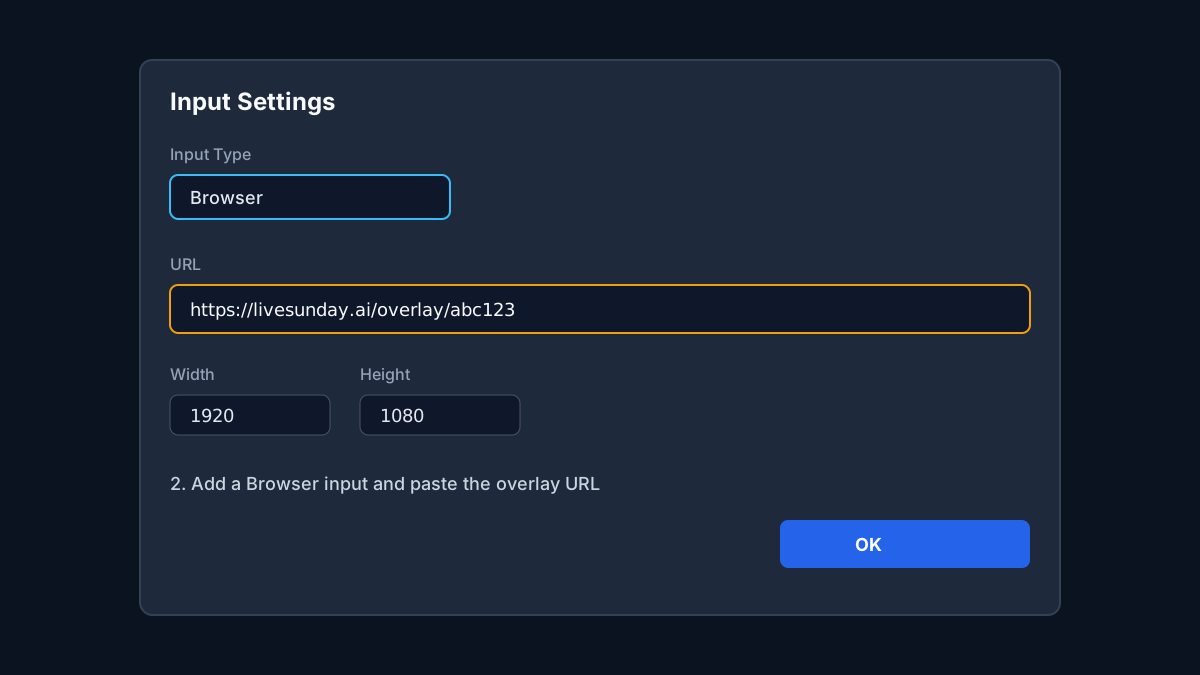
Paste the overlay URL
In the Browser input settings:
- URL — paste the LiveSunday overlay URL
- Width — match your output (for example
1920) - Height — match your output (for example
1080)
Click OK.
Layer captions over your program
Put the Browser input in your MultiView / Mix so it sits above your camera or slides. The overlay page is transparent, so only caption text shows on top of the scene.
Recommended
Match Browser width and height to your vMix output resolution. That keeps font size and position aligned with the caption link builder.
Start the LiveSunday stream
In the LiveSunday dashboard, click Start stream. Captions should appear in the vMix preview within a few seconds.
Tips
- Create one Browser input per language if you switch languages on different screens or buses.
- If captions freeze, open the Browser input settings and click Refresh, or restart the LiveSunday stream.
- For livestreams, keep the Browser input in the same mix that feeds your recording or RTMP output.
- Related guides: OBS Studio, ProPresenter, EasyWorship.